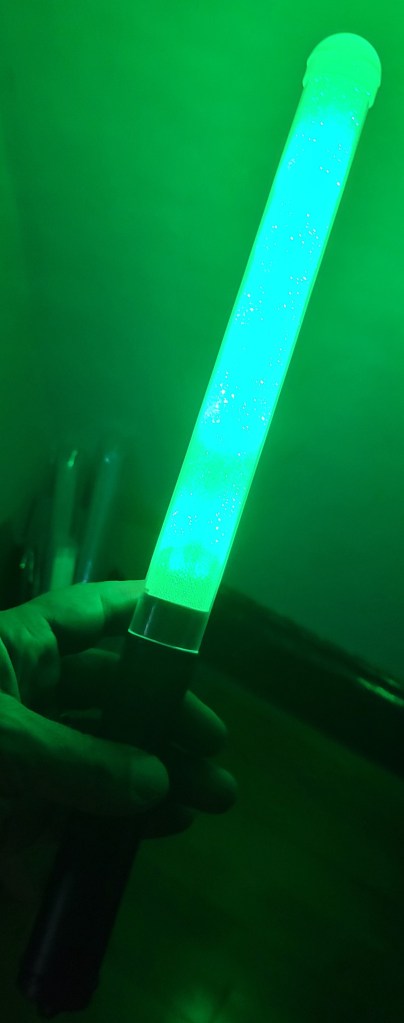
[Update 2024: EZRGB asked me about including this in EZSequence, and I said it’s open source so of course. Also, it sounds like a great idea to help other people enjoy these products. I think they got it, or used the tool to generate effects… the wands are working in their free xLights Around The World Sequences].
For several years, blinky people have been using wireless light wands, bracelets, etc., that have their colors synced with the rest of the light show. There are plenty of end-to-end instructions on how to set them up, from configuring the DMX port and transmitter, to adding effects to your sequence.
There’s only one problem for lazy people such as myself who purchase all their sequences from vendors: How do you get the wands to light up when there aren’t suitable effects in the package? You could do some sequencing, of course, but what if you have a real pile of dozens of sequences on hand and not that much free time? Maybe map the effects for a flood light, but not all sequences even have those…
So, we (Matt over at Cargo Lights did a lot of the testing) set out to automate, or at least take the drudgery out of, the process…
Wand Characteristics
Before attempting to sequence for the wands, I learned a few things about them:
- The wands change color right on cue, but don’t update at the full 40 FPS we expect in our shows. Maybe 8-10 FPS.
- You might not want to run the transmitter full time, as it can cause interference (most reports mention car key fobs). You’d best only trigger it when the wand is changing color. So, you make a control track that activates the transmitter only as needed.
Automatic Sequencing
Based on the wand characteristics, I decided to write a program to generate the wand effects track. In response to events, such as a big color change, or a beat in the timing track, the program will pick the most popular color on a specified model (or set of models) and apply it to the wand. (It can also be set to alternate between popular colors on the beats.)

This approach, while simple, gets decent results, especially given how quick it is. (In the video below, the large glowing spot in the middle of the driveway represents the color the wands will show.)
Using the Program
Now, the program is a bit involved because it uses the .xsq file for the timing marks, the show folder to get the network setup, and the .fseq file to establish the popular colors. The steps are:
- Open the original sequence, render it, and save it. (Also be sure your controllers and layout are saved).
- Watch the sequence, to pick a prop or two with the colors you want to follow.
- Identify the name of the timing track for changes, often beats, drums, or similar. If there is no timing track, try using the vamp plugins to generate beats.
- Run the python script to generate a new .xsq with the wands in it.
- Open the wand sequence, and cut+paste the effects into your sequence (or alternatively import them).
Once you have all the required information, you are ready to run the python script. Here’s a basic example:
python DmxWands/GenerateFloodEffect.py
   --showdir /c/2023_halloween
   --fseq /c/2023_halloween/AddamsFamily.fseq
   --inxsq /c/2023_halloween/AddamsFamily.xsq
   --outxsq /c/2023_Halloween/AddamsFamily_DMX.xsq
   --timingtrack "Beats"
   --modelsource "Arch Hedge L1"
   --changecolor 1
Be sure to change the blue part to match the paths on your system, and the green part to match the sequence information. The pink “changecolor” option is also frequently used; a value of “0” means that it will just take the most popular color, a value of “1” means that it will attempt to change colors on each timing mark. “1” is a good choice for songs with a strong beat, “0” is better for subtle songs, or songs where the beat isn’t perfectly detected.
The following additional configuration parameters might also come in handy:
    --targetmodel: Target model for colors information
    --targetcontrol: Name of target model for control pulses when using 5-channel tx
    --ch1val: Control Channel 1 (ID) value, defaults to 85 for 5-channel tx
    --ch2val: Control Channel 2 (Group) value, 3 for zone 3, or 0 for all zones
    --controladvance: Milliseconds to advance the timing of the control strobe
    --coloradvance: Milliseconds to advance the timing of the color
    --controlwidth: Milliseconds to hold the control signal
    --controlgap: Minimum milliseconds of gap to wait between control pulses
If your DMX transmitter is not split into models called “DmxWandsCtrl” and “DmxWands”, you will want to override these defaults using the green options. If you want to set a specific group / zone, be sure to specify –ch2val. If you want to adjust how much time elapses between updates sent to the transmitter, or if you want to adjust the timing of the wands relative to your other effects, look into the settings in blue.
For fine tuning the colors selected, there are additional parameters. These affect how different two colors have to be to be considered different, how bright a color has to be to get selected, and thresholds for triggering events based on color and brightness changes. For example, if you think the colors chosen are too similar, and want them to be more different, you might set something like:
   --similarityh 12
   --similaritys 12
The defaults are reasonable but, if you don’t like your results, see the help and try some experiments.
Good luck*. If you find a bug or find some interesting settings, feel free to email me at any address at merryoncherry.org.
*A Note About Obtaining DMX Wands
I got my first transmitter and wands from Wally’s Lights. I recommend this, certainly if you are just starting out with wands, and maybe forever. I did try to get a cheaper batch from the China manufacturer, and learned the hard way that they don’t all use the same control scheme, and the vendor might leave off the on/off switch and color change button, which means the wands won’t be as fun for kids to take home after your show.
*Notes About DMX Troubleshooting
The wands “just work”. However, if they don’t, there is not a lot of feedback on the transmitter unit to tell you where the problem may be. Here are some things to try:
- Make sure you are using a DMX port that you already know how to use. (Some require a full 512 channels configured, etc.) Probably best if you use a cable you trust also. (I have a handy DMX to DC board with 30 indicator lights, it’s an easy way to tell if the signal is being sent.)
- Make sure the transmitter ID channel is going out, and there are no brightness or gamma adjustments applied by xLights or your controller — that would change this number and the transmitter would ignore your instructions.
 Merry On Cherry